


Preset Effects

This is a work-in-progress tutorial that demonstrates how to apply and use effects on presets for Celestial Oracle.
This tutorial will require you to know how to make a preset, if you don’t, please check this tutorial first: Preset Basics
Code Key
Glow: Makes the texture glow.
colour_op_ex blend_diffuse_alpha src_texture
Glow: Makes the texture glow; change numbers for brighter or dimmer effect.
emissive 2.5 2.5 2.5 1.0
Transparency: Needed for images with transparency to work.
alpha_rejection greater_equal 128
Scroll: Makes a texture move/scroll around; the numbers can be changed.
scroll_anim 0.1 1.3
Metallic: Gives a texture a metallic appearance.
env_map spherical
Rotation: Rotates a texture around; the numbers can be changed.
rotate_anim 0.05
Wave/Sway: Makes a texture wave around; the numbers and scale_x can be changed. Scale waves on an axis, which can be x or y. You can have multiple of this line to make it wave in different directions.
wave_xform scale_x sine 3 0.1 0 3
Scale: Changes the size of the texture; numbers can be changed to edit the size of the image.
scale 0.4 0.4
Wireframe: Makes the texture follow the model's polygons, creating a wireframe appearance.
polygon_mode wireframe
Frame by Frame Animation: This replaces the texture line. Add more textures for more animation frames, change the number at the end to change animation speed. Please keep animation frames to a minimum.
anim_texture character_texture1.png character_texture2.png .5
Outline: Creates a glowing outline around the body part it's put on.
import * from "Outline.material"
}
}
pass : OutlineExperiment
{
diffuse 0.0 0.0 0.0 0.0
set $sinkScale 1
set $edgeScale 0.2
Velvet Xray: Coming Soon...
Glow
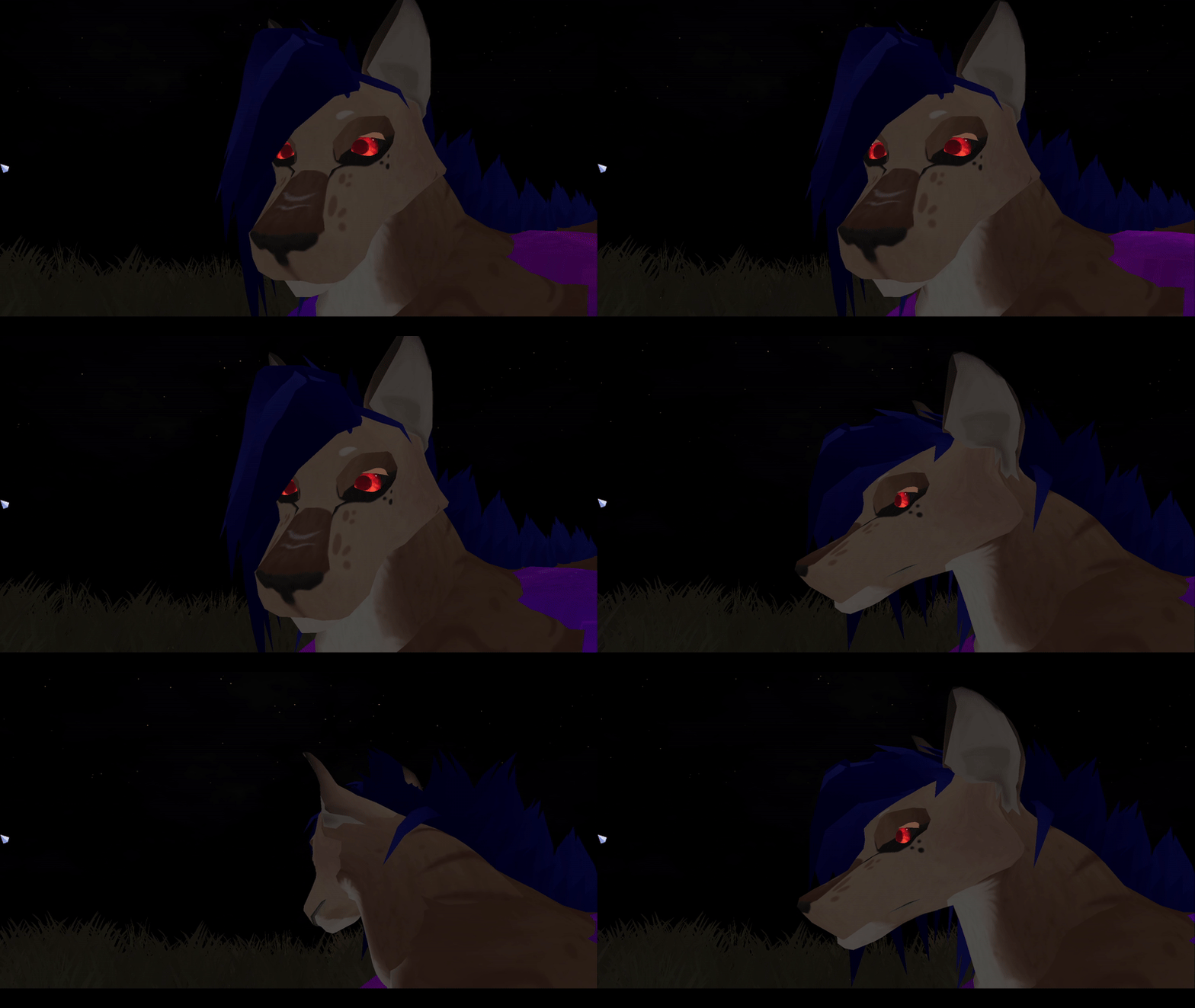
The glow example shown here will be on the character's eyes.
As seen in the video, you will want to go into your .material file of your preset, select the body part section you want to glow, delete it, and replace it with the code below. Be sure there are no spaces at the top or bottom when you replace the code. Edit the /EyeMat, Eyes.png, and EyesGlow.png to their respective body parts, and make sure they are in the correct place in the code. For example, if you want the body to glow, you’ll change it to /BodyMat, Body.png, and BodyGlow.png
For this to work, you’ll need two separate PNGs. One will be your base material that will not glow, and the other will be the parts you want to glow. As seen below:

You will want to name them:
Username_CharnamePart.png
Username_CharnamePartGlow.png
Change Username to your in-game username, Charname to your preset name, and Part to the body part it’s going on.
Example:
Cassius_FangEyes.png
Cassius_FangEyesGlow.png
Username_CharnamePart.png will be areas you don’t want to glow. Username_CharnamePartGlow.png will be areas you do want to glow. On the Username_CharnameEyeGlow.png if there are areas you don’t want to glow, make them transparent with no color. As seen here, I want the eyes and eyelids to glow, but not the black sclera; simply remove that section of the image and make it transparent. Transparent areas of the image will not glow and will show the Username_CharnamePart.png area instead.

material Username_Charname/EyeMat
{
receive_shadows on
technique
{
pass
{
ambient 1.000000 1.000000 1.000000 1.000000
diffuse 1.000000 1.000000 1.000000 1.000000
specular 0.010000 0.010000 0.010000 1.000000
emissive 0.000000 0.000000 0.000000 1.000000
cull_hardware none
cull_software none
scene_blend alpha_blend
texture_unit
{
texture Username_CharnameEyes.png
colour_op_ex blend_diffuse_alpha src_texture src_current
tex_address_mode wrap
filtering trilinear
}
}
pass
{
emissive 2.5 2.5 2.5 1.0
scene_blend alpha_blend
texture_unit
{
texture Username_CharnameEyesGlow.png
}
}
}
}
If done correctly, it should look like this:

EXTRA
If you want the entire material to glow, you only need one image.
Username_CharnamePart.png
Just add this under texture Username_CharnamePart.png
colour_op_ex blend_diffuse_alpha src_texture src_current
Or you can just copy-paste this instead
material Username_Charname/EyeMat
{
receive_shadows on
technique
{
pass
{
ambient 1.000000 1.000000 1.000000 1.000000
diffuse 1.000000 1.000000 1.000000 1.000000
specular 0.010000 0.010000 0.010000 1.000000
emissive 0.000000 0.000000 0.000000 1.000000
cull_hardware none
cull_software none
scene_blend alpha_blend
texture_unit
{
texture Username_CharnameEyes.png
colour_op_ex blend_diffuse_alpha src_texture src_current
tex_address_mode wrap
filtering trilinear
}
}
}
}
Glow Fade
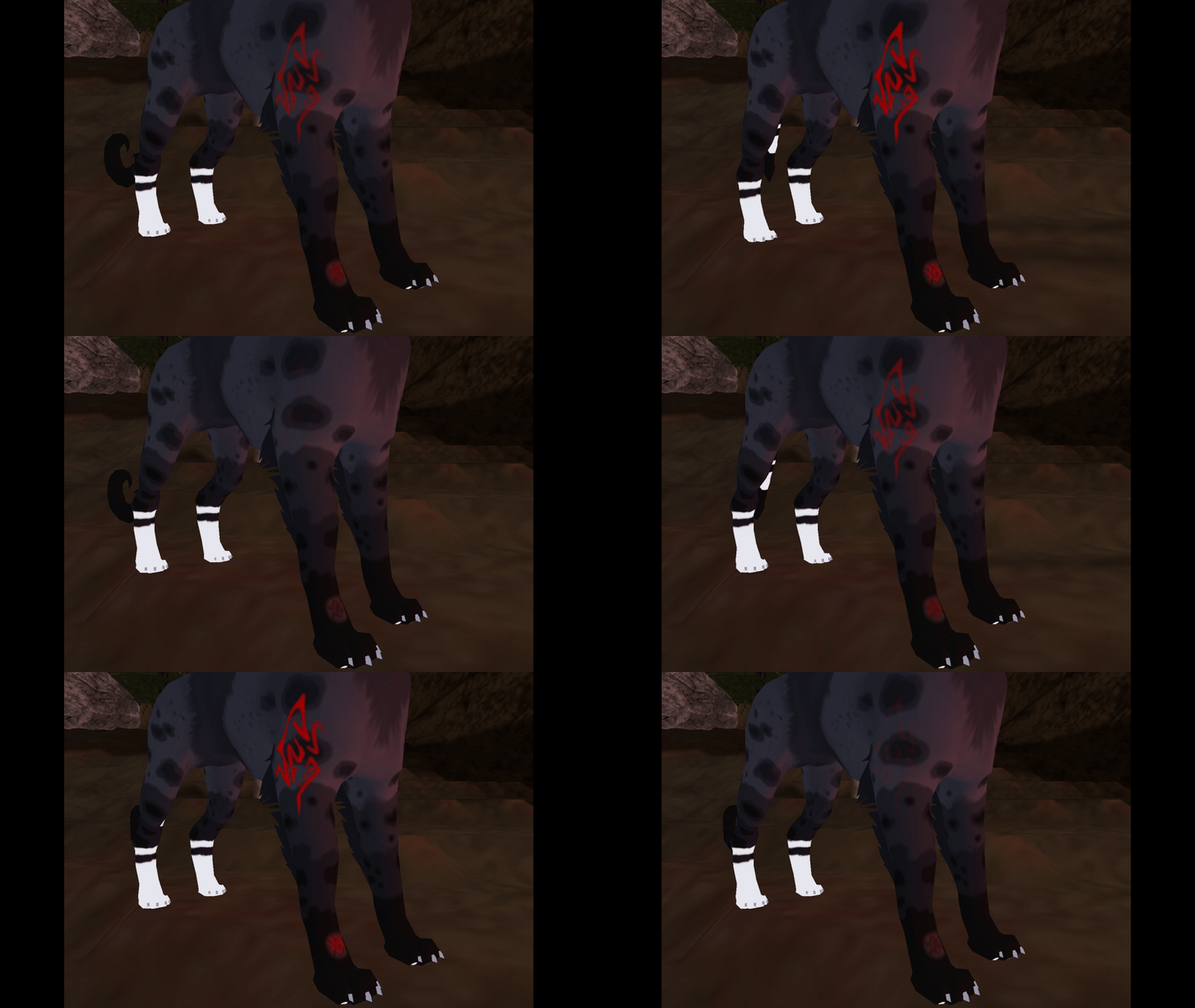
For this effect, you'll want three separate pngs: The base UV, the image you want to fade, and the fade gradient.
Paste this code under filtering trilinear on any body part, rename it appropriately based on your Username, Preset name, and Part.
}
}
pass
{
emissive 2.5 2.5 2.5 1.0
scene_blend alpha_blend
texture_unit
{
texture Username_CharnamePart2.png
}
texture_unit
{
texture Partfading.png
scale 100 100
scroll_anim 0.1 0.1
colour_op add
Note: If it's the last entry in that body parts code don't forget your brackets:
}
}
}
}
At the bottom, always end a code section with the four brackets, or just be sure to paste the code between filtering trilinear and the brackets. Either way works as long as it ends in the brackets.
It should look something like this when it's all together!
Note: The example code below also has transparency added to it.
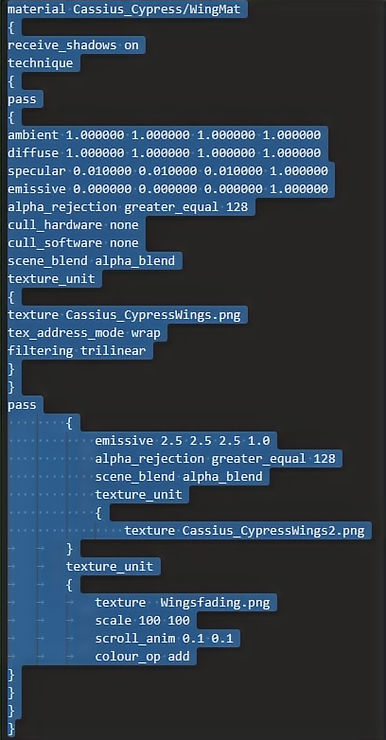

Now that you have your code in place, it's time for your images.
Username_CharnamePart.png
Username_CharnamePart2.png
Partfading.png
Part will be your base texture, Part2 will be what you want to show up when it fades in and out, and Partfading is what will give it that fade effect.
Be sure Part2 and Partfading are on a transparent backgrounds, otherwise it will not work!
You'll have better results if the fading image is a black blurred line down the center, but you can get creative with the shape if you want a different look to it.
Glow Fade + Solid Glow
}
}
pass
{
emissive 2.5 2.5 2.5 1.0
scene_blend alpha_blend
texture_unit
{
texture Username_CharnamePartGlow.png
}
}
pass
{
emissive 2.5 2.5 2.5 1.0
scene_blend alpha_blend
texture_unit
{
texture Username_CharnamePart2.png
}
texture_unit
{
texture Partfading.png
scale 100 100
scroll_anim 0.1 0.1
colour_op add
If you would like to have a glow fade effect of a certain area but also want other areas to glow solid separately from the fade, then use this code.
It will have four pngs, you'll be adding a separate glow image.
Once again, be sure the glow image has a transparent background.
Username_CharnamePart.png
Username_CharnamePartGlow.png
Username_CharnamePart2.png
Partfading.png

Transparency
If you want UVs with transparent backgrounds with no issues, add this as seen in the picture. This will add transparency. It goes under the emissive code line.
alpha_rejection greater_equal 128

Scrolling
material Username_Charname/ManeMat
{
receive_shadows on
technique
{
pass
{
ambient 1.000000 1.000000 1.000000 1.000000
diffuse 1.000000 1.000000 1.000000 1.000000
specular 0.010000 0.010000 0.010000 1.000000
emissive 0.000000 0.000000 0.000000 1.000000
cull_hardware none
cull_software none
texture_unit
{
texture animatedtexture.png
tex_address_mode wrap
filtering trilinear
scroll_anim 0.1 1.3
}
}
pass
{
ambient 1.000000 1.000000 1.000000 1.000000
diffuse 1.000000 1.000000 1.000000 1.000000
specular 0.010000 0.010000 0.010000 1.000000
emissive 0.000000 0.000000 0.000000 1.000000
cull_hardware none
cull_software none
scene_blend alpha_blend
texture_unit
{
texture Username_CharnameMane.png
tex_address_mode wrap
filtering trilinear
}
}
}
}
}
Metallic
material Username_Charname/BodyMat
{
receive_shadows on
technique
{
pass
{
ambient 1.000000 1.000000 1.000000 1.000000
diffuse 1.000000 1.000000 1.000000 1.000000
specular 0.010000 0.010000 0.010000 1.000000
emissive 0.000000 0.000000 0.000000 1.000000
cull_hardware none
cull_software none
texture_unit
{
texture Chrome.png
env_map spherical
tex_address_mode wrap
filtering trilinear
}
}
pass
{
ambient 1.000000 1.000000 1.000000 1.000000
diffuse 1.000000 1.000000 1.000000 1.000000
specular 0.010000 0.010000 0.010000 1.000000
emissive 0.000000 0.000000 0.000000 1.000000
cull_hardware none
cull_software none
scene_blend alpha_blend
texture_unit
{
texture Username_CharnameBody.png
tex_address_mode wrap
filtering trilinear
}
}
}
}
}
material Username_Charname/ManeMat
{
receive_shadows on
technique
{
pass
{
ambient 1.000000 1.000000 1.000000 1.000000
diffuse 1.000000 1.000000 1.000000 1.000000
specular 0.010000 0.010000 0.010000 1.000000
emissive 0.000000 0.000000 0.000000 1.000000
cull_hardware none
cull_software none
scene_blend alpha_blend
texture_unit
{
texture Chrome.png
env_map spherical
tex_address_mode wrap
filtering trilinear
}
}
}
}
material Username_Charname/ManeMat
{
receive_shadows on
technique
{
pass
{
ambient 1.000000 1.000000 1.000000 1.000000
diffuse 1.000000 1.000000 1.000000 1.000000
specular 0.010000 0.010000 0.010000 1.000000
emissive 0.000000 0.000000 0.000000 1.000000
cull_hardware none
cull_software none
scene_blend alpha_blend
texture_unit
{
texture Username_CharnameMane.png
rotate_anim 0.05
tex_address_mode wrap
filtering trilinear
env_map spherical
}
}
}
}
Ghost
material Username_Charname/BodyMat
{
technique
{
pass
{
lighting off
scene_blend colour_blend
depth_write off
cull_hardware none
cull_software none
texture_unit
{
texture GhostTex2.png
tex_address_mode wrap
filtering trilinear
}
texture_unit
{
texture GhostTex.png
scroll_anim 0.01 0.02
tex_address_mode wrap
rotate_anim -0.01
wave_xform scale_x sine 3 0.1 0 3
wave_xform scale_y sine 3 0.1 0 3
colour_op alpha_blend
}
texture_unit
{
texture Username_CharnameBody.png
}
}
}
}
Sway
material Username_Charname/BodyMat
{
receive_shadows on
technique
{
pass
{
ambient 1.000000 1.000000 1.000000 1.000000
diffuse 1.000000 1.000000 1.000000 1.000000
specular 0.010000 0.010000 0.010000 1.000000
emissive 0.000000 0.000000 0.000000 1.000000
cull_hardware none
cull_software none
texture_unit
{
texture scrolly.png
wave_xform scale_x sine 0.1 0.1 0 0.3
wave_xform scale_y sine 0.3 0.1 0 0.2
tex_address_mode wrap
filtering trilinear
}
}
pass
{
ambient 1.000000 1.000000 1.000000 1.000000
diffuse 1.000000 1.000000 1.000000 1.000000
specular 0.010000 0.010000 0.010000 1.000000
emissive 0.000000 0.000000 0.000000 1.000000
cull_hardware none
cull_software none
scene_blend alpha_blend
texture_unit
{
texture Username_CharnameBody.png
tex_address_mode wrap
filtering trilinear
}
}
}
}
}
Multi-Frame Animation
material Username_Charname/BodyMat
{
receive_shadows on
technique
{
pass
{
ambient 1.000000 1.000000 1.000000 1.000000
diffuse 1.000000 1.000000 1.000000 1.000000
specular 0.010000 0.010000 0.010000 1.000000
emissive 0.000000 0.000000 0.000000 1.000000
cull_hardware none
cull_software none
alpha_rejection greater_equal 128
scene_blend alpha_blend
texture_unit
{
anim_texture glow1.png glow1.png glow2.png glow2.png glow3.png glow3.png .5
}
}
}
}
}
Masks
material Username_Charname/BodyMat
{
receive_shadows on
technique
{
pass
{
ambient 1.000000 1.000000 1.000000 1.000000
diffuse 1.000000 1.000000 1.000000 1.000000
specular 0.050000 0.050000 0.050000 1.000000
emissive 0.000000 0.000000 0.000000 1.000000
cull_hardware none
cull_software none
scene_blend alpha_blend
alpha_rejection greater_equal 128
texture_unit
{
texture Username_CharnameBody.png
alpha_op_ex source1 src_texture src_texture
tex_address_mode wrap
filtering trilinear
}
}
pass
{
ambient 1.000000 1.000000 1.000000 1.000000
diffuse 1.000000 1.000000 1.000000 1.000000
specular 0.050000 0.050000 0.050000 1.000000
emissive 0.000000 0.000000 0.000000 1.000000
cull_hardware none
cull_software none
scene_blend alpha_blend
alpha_rejection greater_equal 128
texture_unit
{
texture Characterpiecemask.png
alpha_op_ex source1 src_texture src_texture
}
texture_unit
{
texture Characterpiece.png
}
}
}
}
Outline
import * from "Outline.material"
material Username_Charname/WingMat
{
receive_shadows on
technique
{
pass
{
ambient 1.000000 1.000000 1.000000 1.000000
diffuse 1.000000 1.000000 1.000000 1.000000
specular 0.010000 0.010000 0.010000 1.000000
emissive 0.000000 0.000000 0.000000 1.000000
cull_hardware none
cull_software none
texture_unit
{
{
texture Username_CharnameWings.png
tex_address_mode wrap
filtering trilinear
}
}
pass : OutlineExperiment
{
diffuse 0.0 0.0 0.0 0.0
set $sinkScale 1
set $edgeScale 0.2
}
}
}
}
Red - 1.0 0.0 0.0
Blue - 0.0 0.0 1.0
Green - 0.0 1.0 0.0
Pink - 1.0 0.0 1.0
White - 1.0 1.0 1.0
Black - 0.0 0.0 0.0
Purple - 0.6 0.0 1.0
Cyan - 0.0 1.0 1.0
Yellow - 1.0 1.0 0.0
Velvet Xray
import * from "velvetshader.material"
material Username_Charname/ManeMat
{
technique
{
pass
{
vertex_program_ref velvetshader_vs
{
param_named_auto worldViewProjMatrix worldviewproj_matrix
}
fragment_program_ref velvetshader_ps
{
param_named_auto eyePosition camera_position_object_space
}
texture_unit
{
texture blue.png 2d
}
}
}
}
Wireframe
material Username_Charname/TailMat
{
receive_shadows on
technique
{
pass
{
ambient 1.000000 1.000000 1.000000 1.000000
diffuse 1.000000 1.000000 1.000000 1.000000
specular 0.010000 0.010000 0.010000 1.000000
emissive 0.000000 0.000000 0.000000 1.000000
cull_hardware none
cull_software none
polygon_mode wireframe
scene_blend alpha_blend
texture_unit
{
texture Username_CharnameTail.png
tex_address_mode wrap
filtering trilinear
}
}
}
}
}